
Ask a small business owner which form they dread most in January and the W-2 comes up a lot. Each one holds an employee’s name, address, Social Security number and a full year of pay. Filling them in by hand, or retyping figures from a spreadsheet, is exactly how typos and lost copies happen.
A fillable version of the form changes that. Using an online PDF editor such as pdfFiller, you can prepare W-2 forms for employees on screen, check them before anything is sent, and share each copy through a protected link rather than a loose email attachment. This guide covers that workflow from payroll data to stored record.
What the W-2 Is and Where Its Data Comes From
Form W-2, the Wage and Tax Statement, reports an employee’s wages for the year and the taxes withheld from them. The IRS page for Form W-2 holds the current form and its official instructions, which explain what each box contains.
Almost nothing on a W-2 should be typed from memory. The employee details come from your personnel records, usually the information the employee gave at hiring. The pay and withholding totals come from your payroll records for the year. The employer details, including your Employer Identification Number, stay the same on every form you issue.
So the W-2 is really a copying job, not a writing job. A good workflow moves those figures onto the form once, accurately, with a record of who touched them.
Get Your Payroll Data Ready First
Before opening a single form, pull everything into one place. A short checklist prevents most of the errors that turn up later:
- Employee list. Everyone on your payroll records for the year.
- Identity details. Legal names and Social Security numbers exactly as they appear in your records, plus current mailing addresses.
- Year-end totals. A payroll summary for each employee showing wages and each type of withholding.
- Employer details. Business name, address and EIN, written out once so you can copy them consistently.
Check the summary against your payroll account before you start. If the totals do not reconcile there, they will not reconcile on the forms either, and it is far easier to fix a spreadsheet than a batch of finished W-2s.
How to Fill In a W-2 in pdfFiller
pdfFiller runs in a web browser and as iOS and Android apps, so the work can happen at a desk or on the move. The process for each employee looks like this:
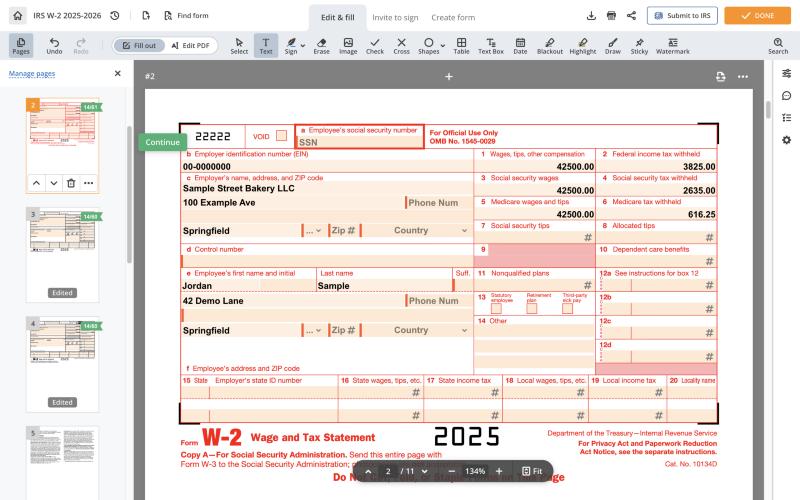
- Open a fillable W-2. Start from a fillable form version of the W-2, not a printed copy, so there is nothing to scan or retype.
- Enter the employer section once. Fill in your business details, then reuse that version as the starting point for each employee.
- Add the employee’s details. Copy names and numbers from your records rather than typing them fresh.
- Enter the totals. Work box by box from the payroll summary, following the IRS instructions where a box is unclear.
- Save each form separately. Name each file clearly, for example by employee and tax year.
Check Every Form Before It Leaves
One wrong digit on a W-2 causes headaches for the employee and for you. A quick final glance won’t catch it, so make review a proper step.
Start with totals. Add up each box across all employees and compare the figures with your payroll summary for the year. Then check identity fields one by one, because a transposed digit in a Social Security number is easy to miss and hard to spot later.
If someone else in the business can act as a second reviewer, ask them to check a sample against the source records. pdfFiller’s comment and annotation tools let the reviewer flag a specific box directly on the form, which keeps questions attached to the exact figure in doubt instead of buried in an email thread.
Share Employee Copies Securely
Emailing a W-2 as a plain attachment puts a Social Security number in an inbox where it can be forwarded, misdirected or left unprotected for years. A shared document with access controls is a safer route.
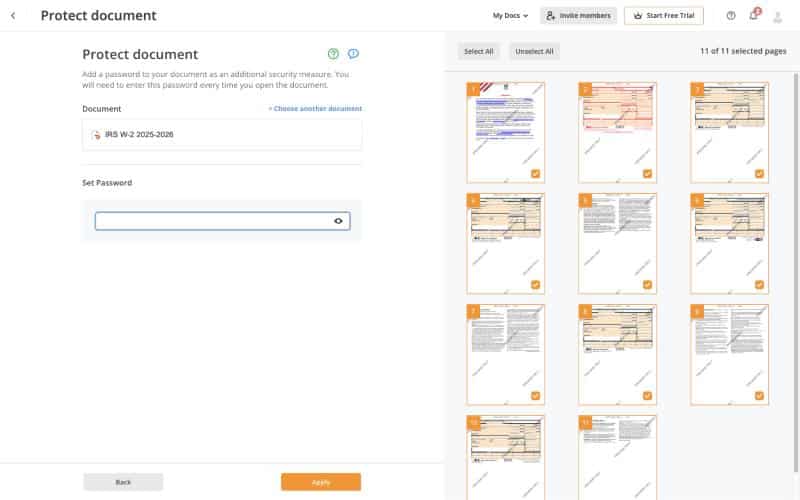
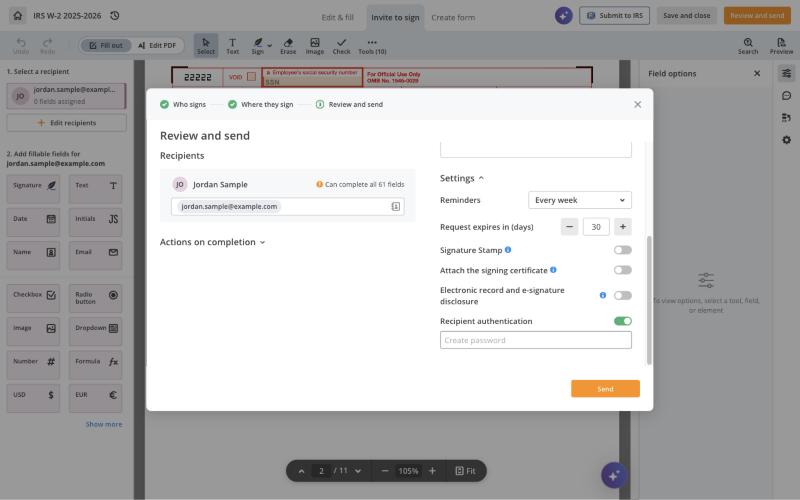
pdfFiller lets you add password protection to an individual document, require additional signer authentication, and set an expiry date so a link stops working after a set period. Two-factor authentication protects the account the forms are sent from. Each password should reach the employee through a different channel from the link itself, such as a text message or in person.
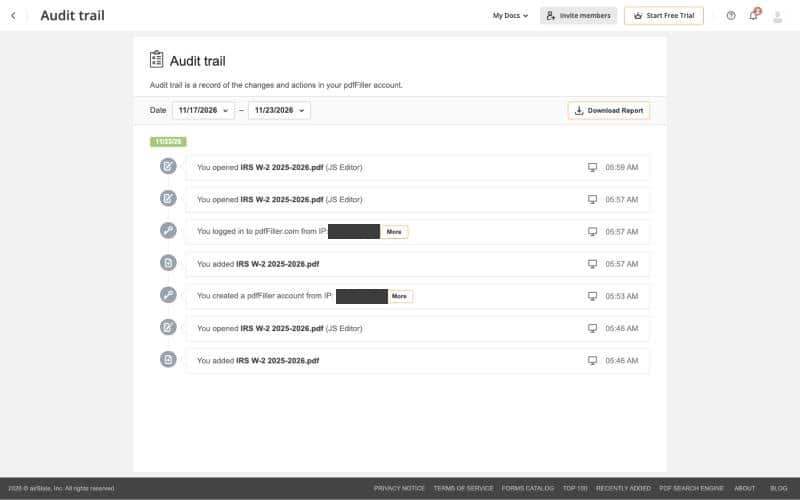
The Audit Trail then records who viewed, edited or shared each document, with timestamps and IP addresses, so you can confirm that an employee actually opened their copy.
Store W-2 Records Safely
Once the W-2s are out, they still need a safe home. A shared office drive or a desktop folder usually isn’t one. In pdfFiller, documents stay in the user’s private account. They are not shared with third parties and are not used to train AI models.
Documents are protected with 256-bit AES encryption in transit and at rest. The infrastructure sits in SOC 2 Type II-certified data centers with 24/7 threat detection, and pdfFiller itself is independently certified for SOC 2 Type II.
Organizing the files well matters as much as the storage. A folder per tax year, with each form named by employee, makes it simple to find a single W-2 when an employee asks for a replacement copy or a figure needs checking.
A Worked Example: Year-End W-2s for a 12-Person Business
Take a fictional bakery with 12 people on its payroll records for the year. The owner exports a year-end payroll summary, checks it against the payroll account, then fills in the employer section of one fillable form and saves it. That employer-only file becomes the starting point for all 12 W-2s.
Each employee’s details are copied from personnel records, and the totals go in box by box. The bookkeeper then adds up each box across the batch, finds one transposed digit and flags it with a comment on the form. Once it is fixed, each copy goes out through a password-protected link with an expiry date, and the Audit Trail shows when each employee opened theirs. The bakery runs its onboarding paperwork the same way, using a form template to send for signature to each new hire, with an eSignature and audit trail on every document.
Common Mistakes to Avoid
- Retyping instead of copying. Every retyped Social Security number is a fresh chance for a typo.
- Skipping the totals check. Box totals that do not match payroll records point to an error somewhere in the batch.
- Reusing last year’s files carelessly. Starting from an old W-2 risks carrying over outdated figures. Start from the employer-only version instead.
- Sending passwords with links. A password in the same email as the link protects nothing.
- Real data in examples. When training staff or sharing screenshots, use fictional details only.
Frequently Asked Questions
Can I fill out a W-2 form online?
Yes. A fillable W-2 lets you type each entry directly into the form in a web browser, without printing it or writing by hand. pdfFiller offers the W-2 in its form library and also works through iOS and Android apps, so forms can be completed, reviewed and saved from a computer or a phone.
What information do I need before preparing W-2 forms?
You need each employee’s legal name, Social Security number and address from your records, a year-end payroll summary showing wages and withholding, and your business name, address and Employer Identification Number. The official IRS instructions for Form W-2 explain what each box on the form contains.
How can I protect W-2 forms when sharing them with employees?
Avoid plain email attachments. pdfFiller lets you add a password to each document, require additional signer authentication and set an expiry date on access. Send the password through a separate channel from the link, and check the Audit Trail afterward to confirm the employee opened their copy.
Can I edit a W-2 before sending it?
Yes. A fillable W-2 stays editable while it sits in your account, so you can correct a figure or a misspelled name after review. Comments and annotations let a second reviewer flag a specific box, and the Audit Trail records each edit with a timestamp, so changes remain traceable.
Does pdfFiller keep a record of who opened a W-2?
Yes. The Audit Trail records who viewed, edited, signed or shared a document, with timestamps and IP addresses. For W-2s, that gives the employer a clear record that each employee accessed their copy, and it shows any changes made to a form after it was first prepared.